
The Yuzu Template Importer helps you move from Figma design work to usable Yuzu templates without rebuilding every layer by hand. Select a Figma frame, choose the right Yuzu team settings, and create a template that can carry across layout, images, text, fonts, variables, QR placeholders, and handwriting layers.
You should still review every imported template in Yuzu before using it in a live campaign. Complex Figma effects can be simplified during import, so the importer is best treated as a fast starting point for production-ready templates.
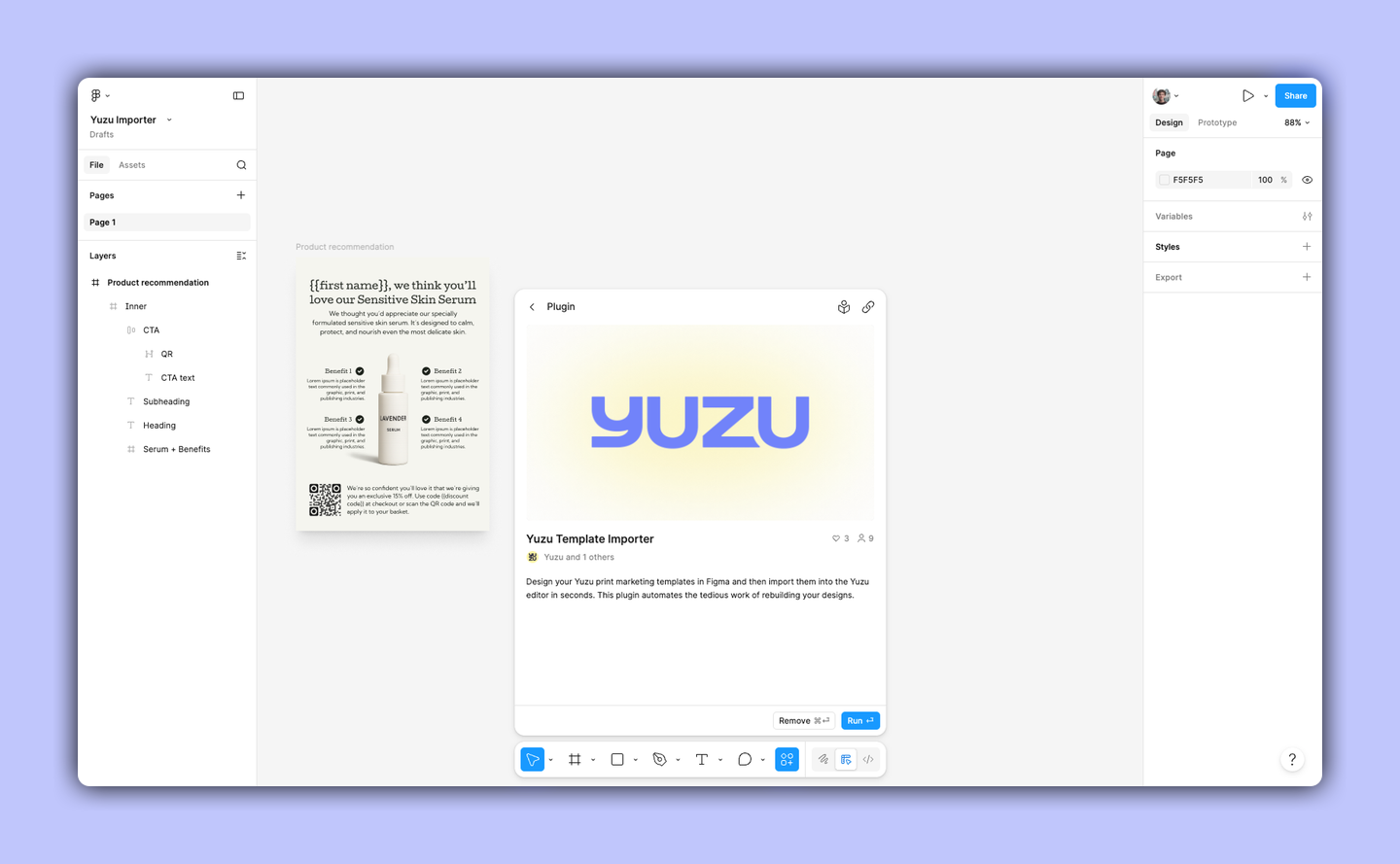
Install the plugin from the Figma Community: Yuzu Template Importer.
Before you start
Before importing, check that you have the pieces the importer needs:
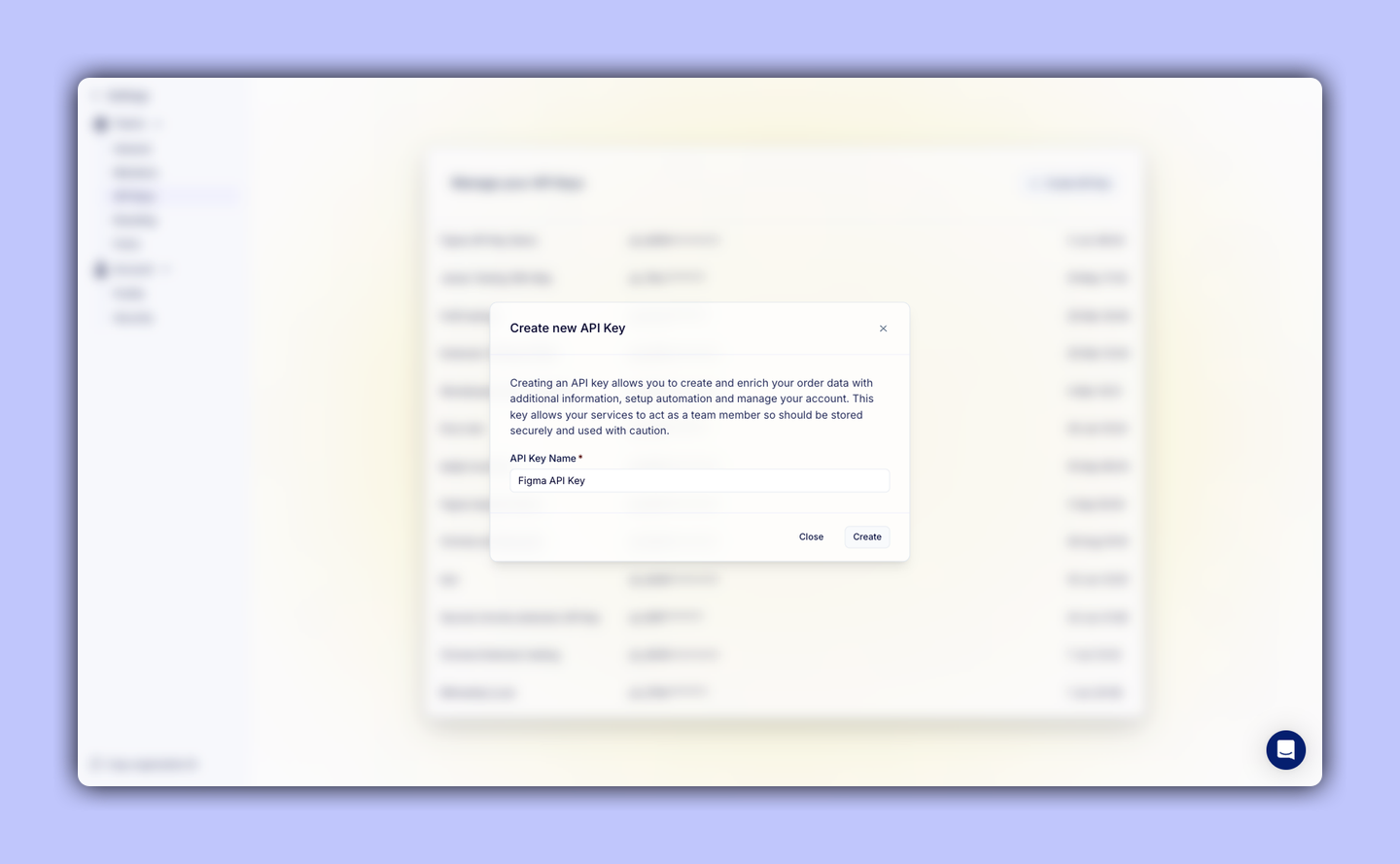
- Access to the Yuzu team where the template should be created
- A Yuzu API key for that team
- One Figma frame that matches the template size you want to import
- Fonts that exist in your Yuzu team, or a plan to map them in the importer
- Any Yuzu variable tokens you want to use in Figma text
Import a Figma frame
Open the Figma file that contains your template design, then run Yuzu Template Importer from Figma.
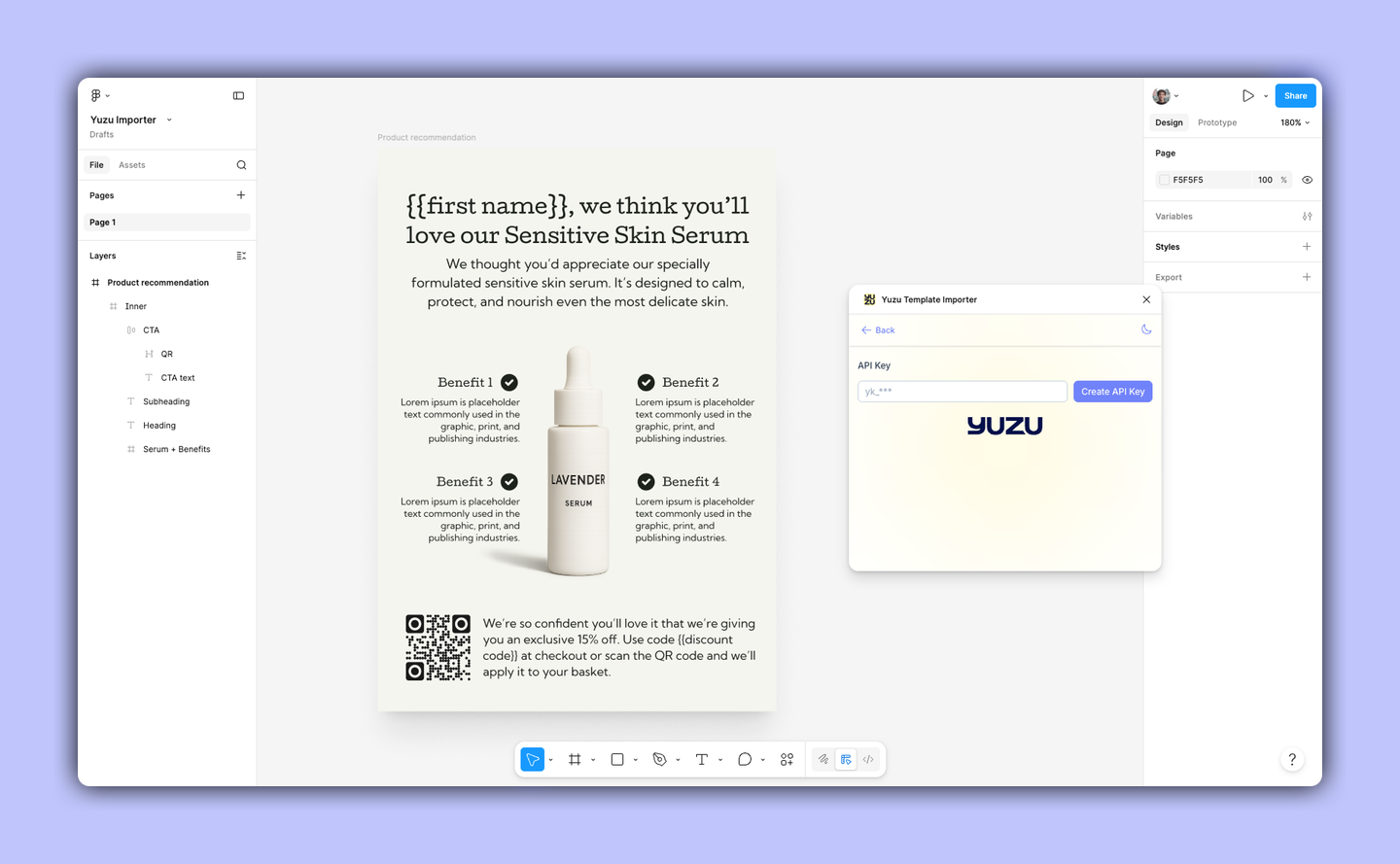
Add your Yuzu API key in the importer settings. This connects the plugin to the right Yuzu team and lets it load team-level settings such as fonts and variables.
Select the frame you want to import. If multiple nodes are selected, the importer uses the first selected node.
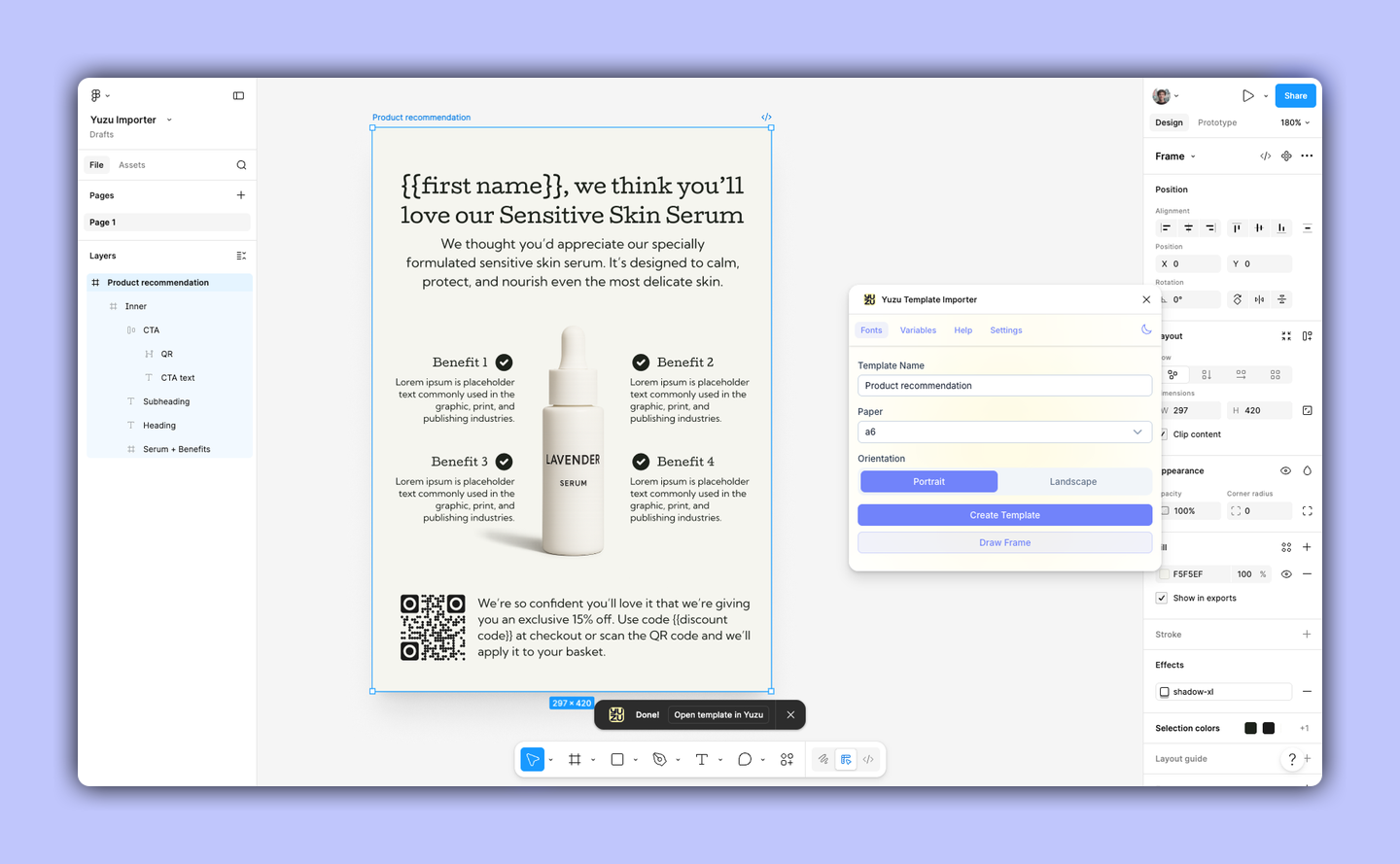
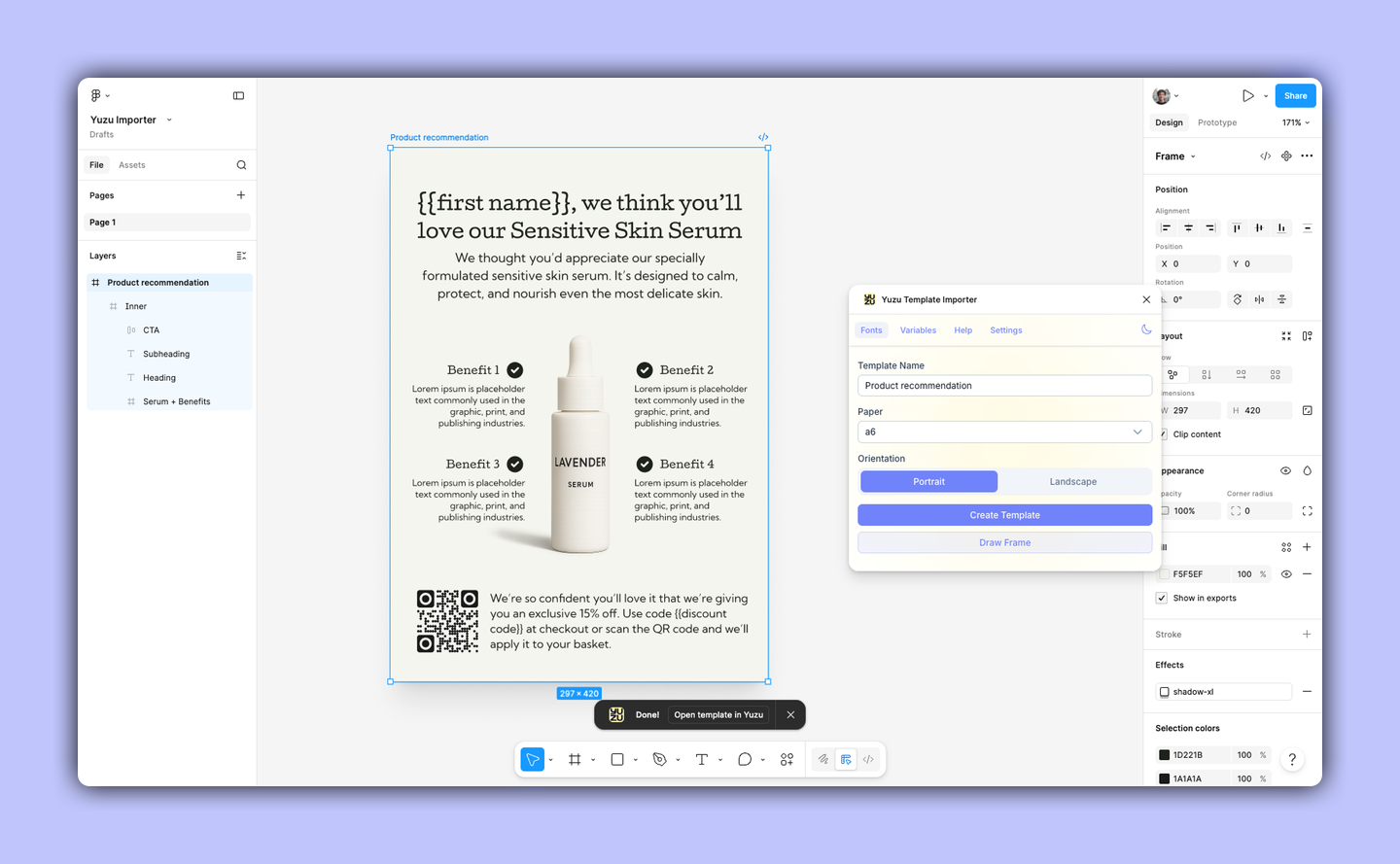
Choose the paper size and orientation that matches the final Yuzu template.
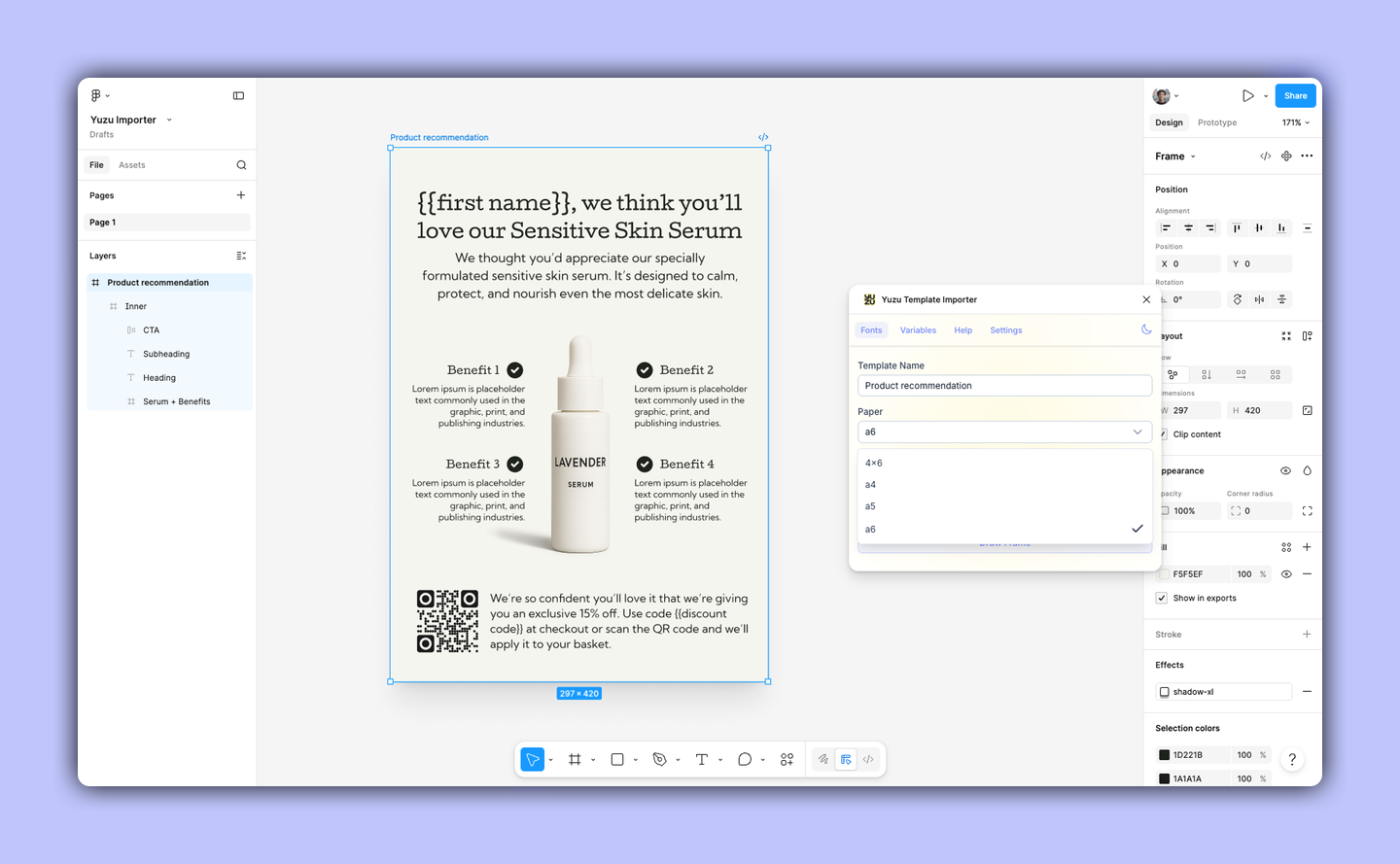
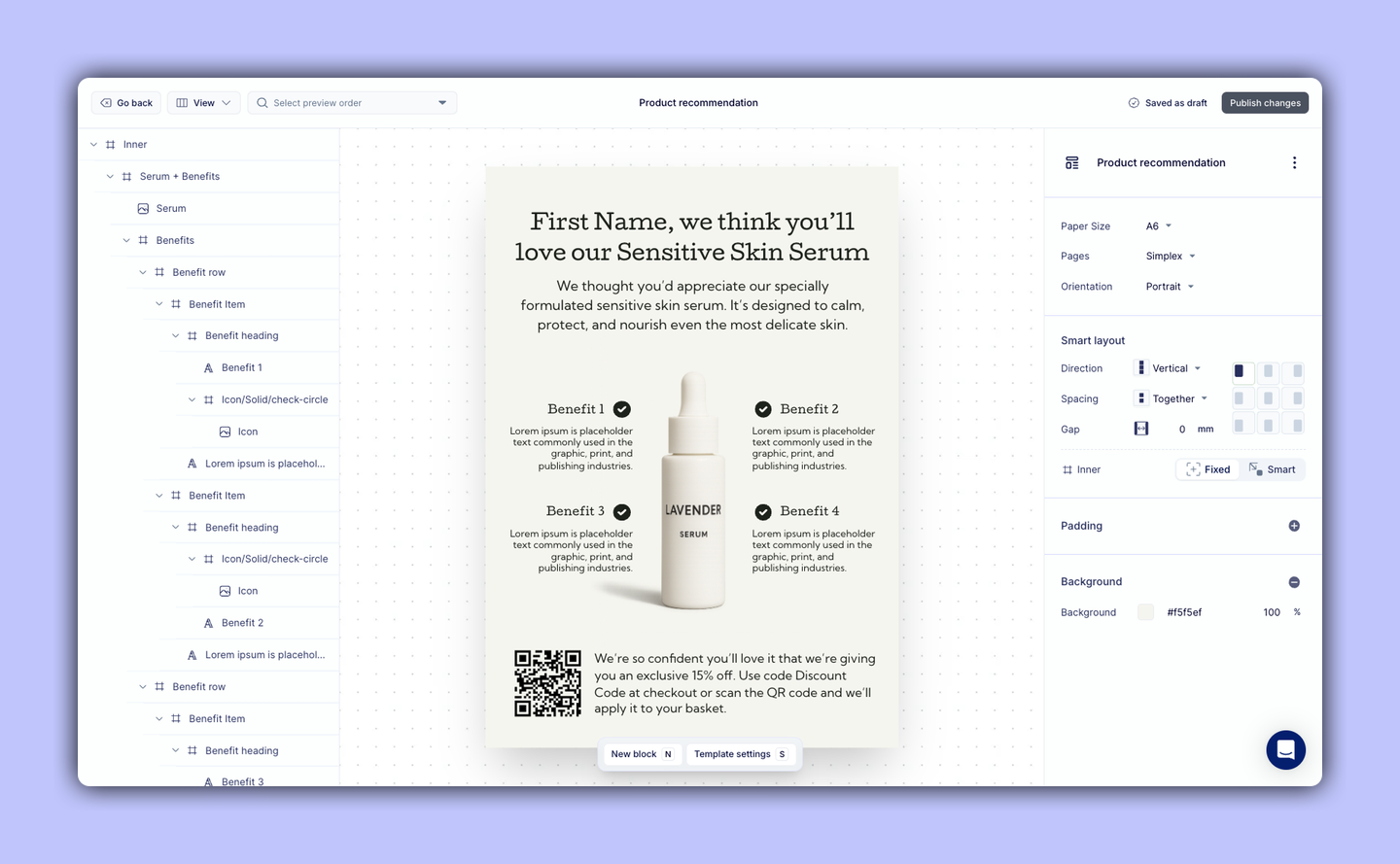
Create the template, then open it in Yuzu to check the output. Pay particular attention to fonts, variables, QR codes, and any layers that relied on more advanced Figma effects.
Use fonts from your Yuzu team
The importer loads fonts available to your Yuzu team. If a Figma font family or style has a different name in Yuzu, open the importer Fonts page and map the Figma family or style to the matching Yuzu font.
For example, you might map a Figma family such as Futura PT and styles such as Book or Regular to the closest available Yuzu font. If the importer cannot match a font, review the imported template and update the font in Yuzu before publishing.
Add Yuzu variables in Figma text
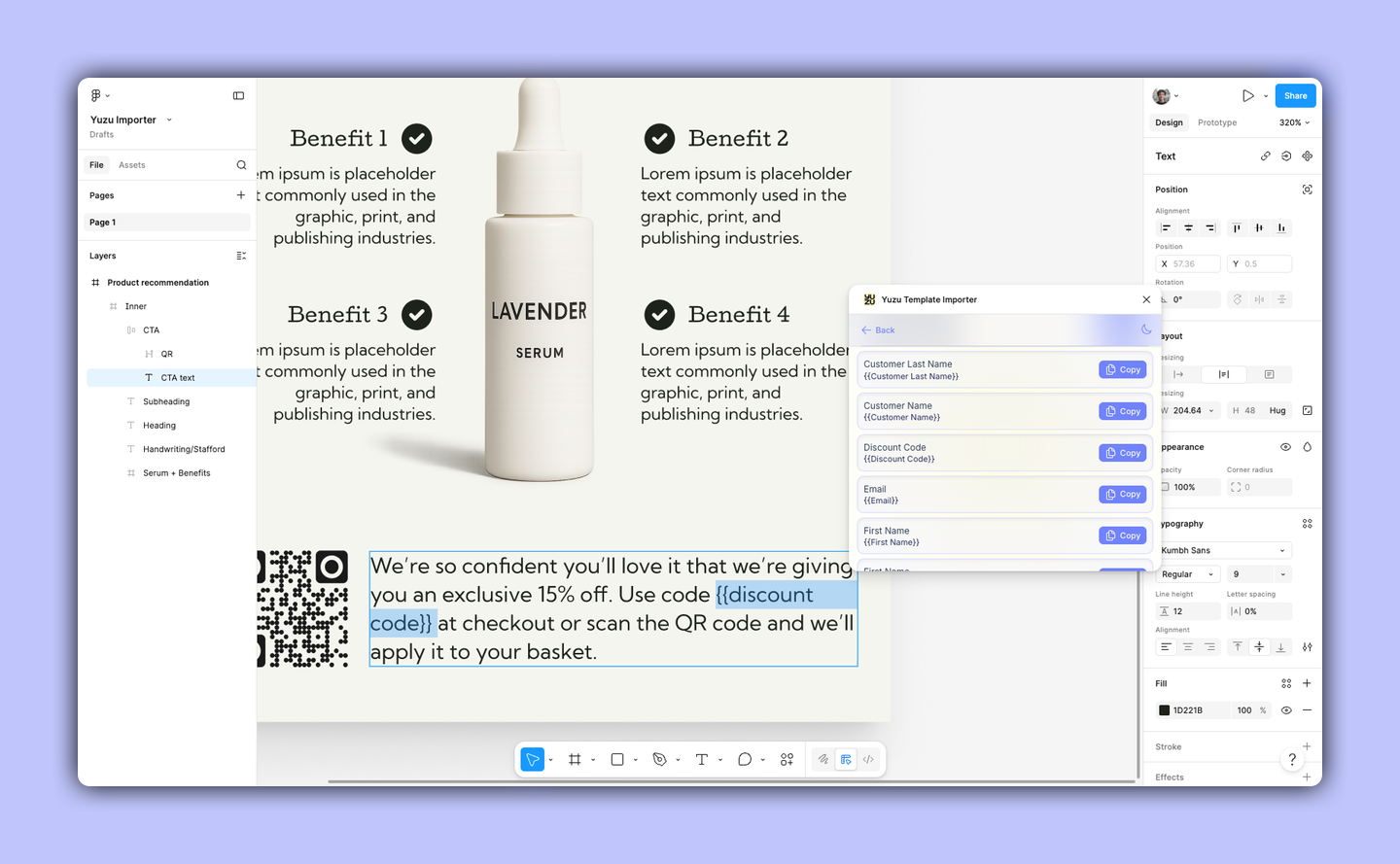
The importer can replace text tokens with Yuzu variables. Copy the exact variable token from the importer Variables page, including the curly braces, then paste it into the Figma text layer where that value should appear.
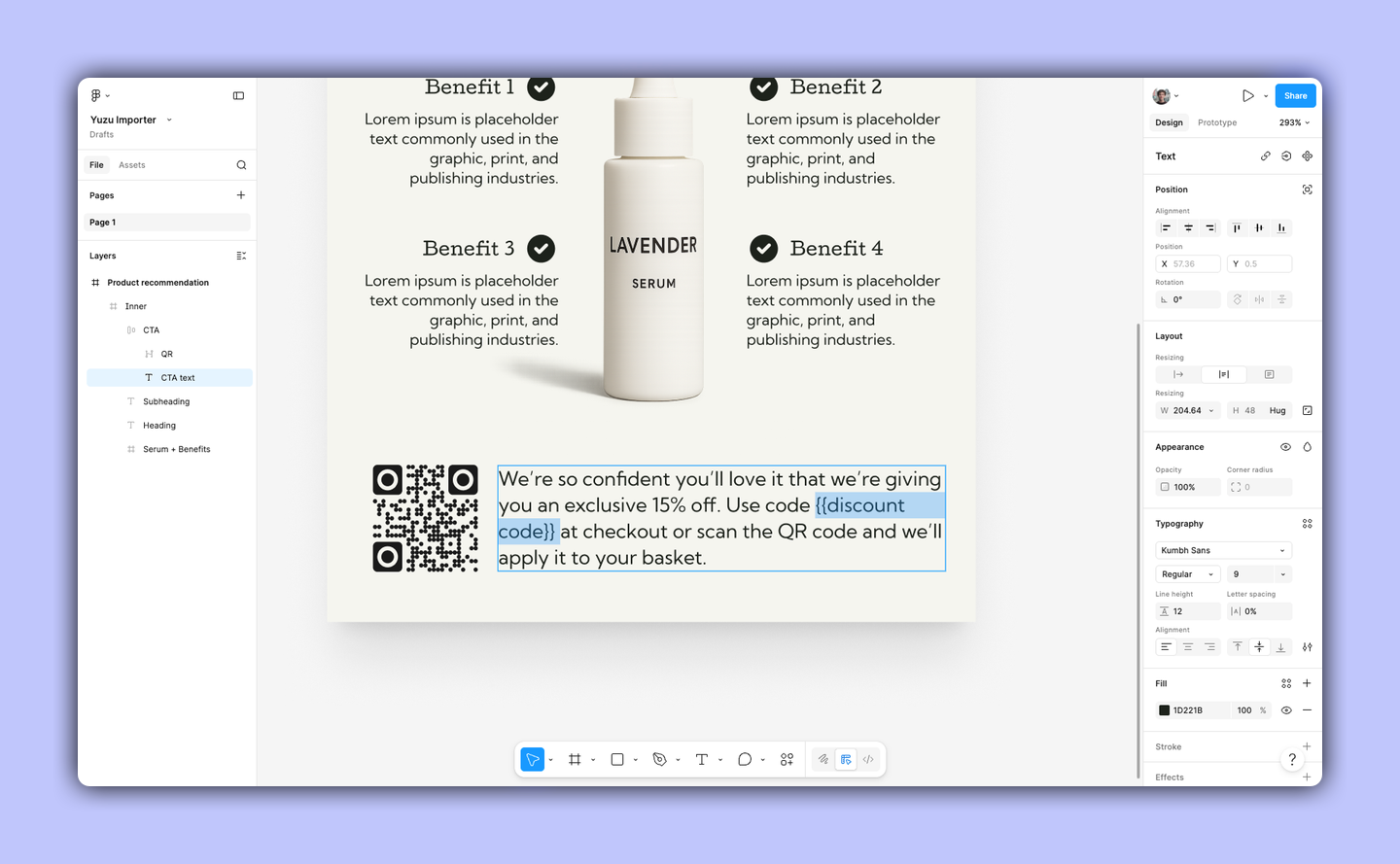
Do not retype variable names by hand. Copying the token avoids small naming differences that prevent the importer from matching the variable in Yuzu.
Add QR codes
To create a QR code in Yuzu, name the Figma layer QR. The importer replaces a vector, shape, or frame with that layer name with a Yuzu QR code element in the same position and size.
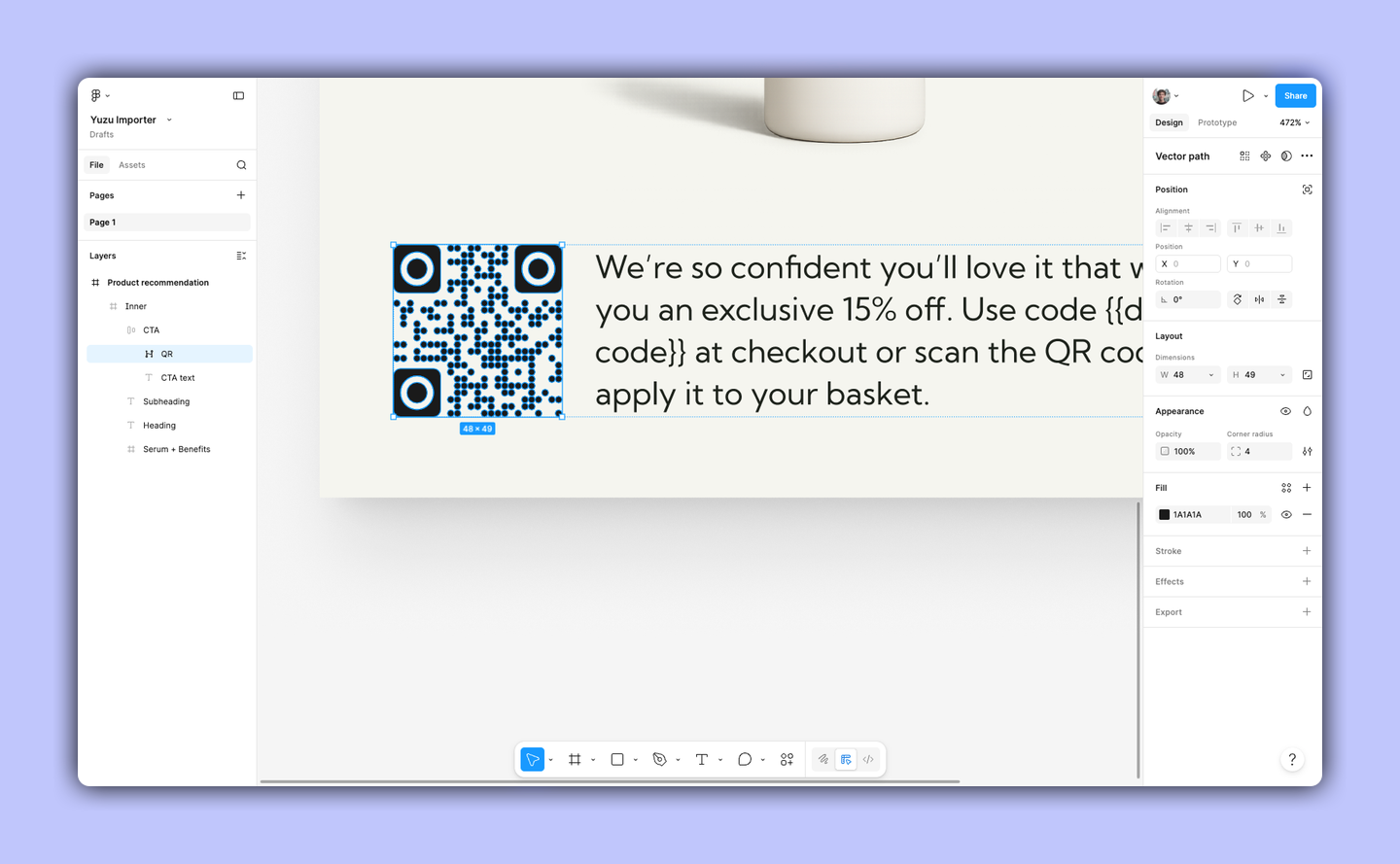
After import, open the QR code in Yuzu and set the destination URL or QR content you want to use.
Add handwriting layers
To import a text layer as handwriting, rename the Figma text layer using the handwriting/<family> pattern.
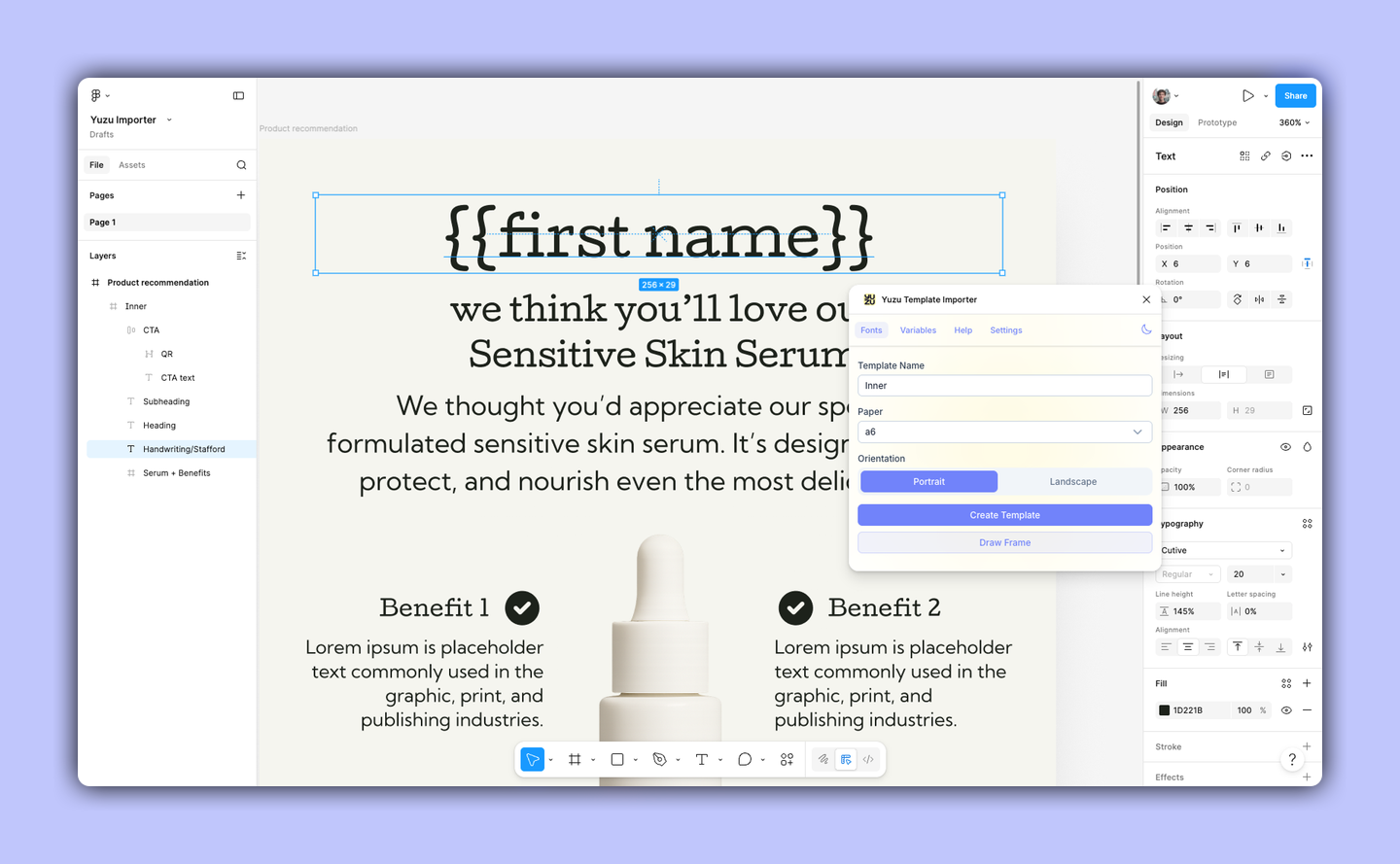
Supported family names:
handwriting/carpenterhandwriting/fosterhandwriting/georgehandwriting/groganhandwriting/knowleshandwriting/nightingalehandwriting/robinsonhandwriting/singhhandwriting/stafford
The importer uses the layer's text content and converts it to a Yuzu handwriting element. Black Figma text imports as black handwriting; other text colors import as dark blue handwriting.
Review the imported template
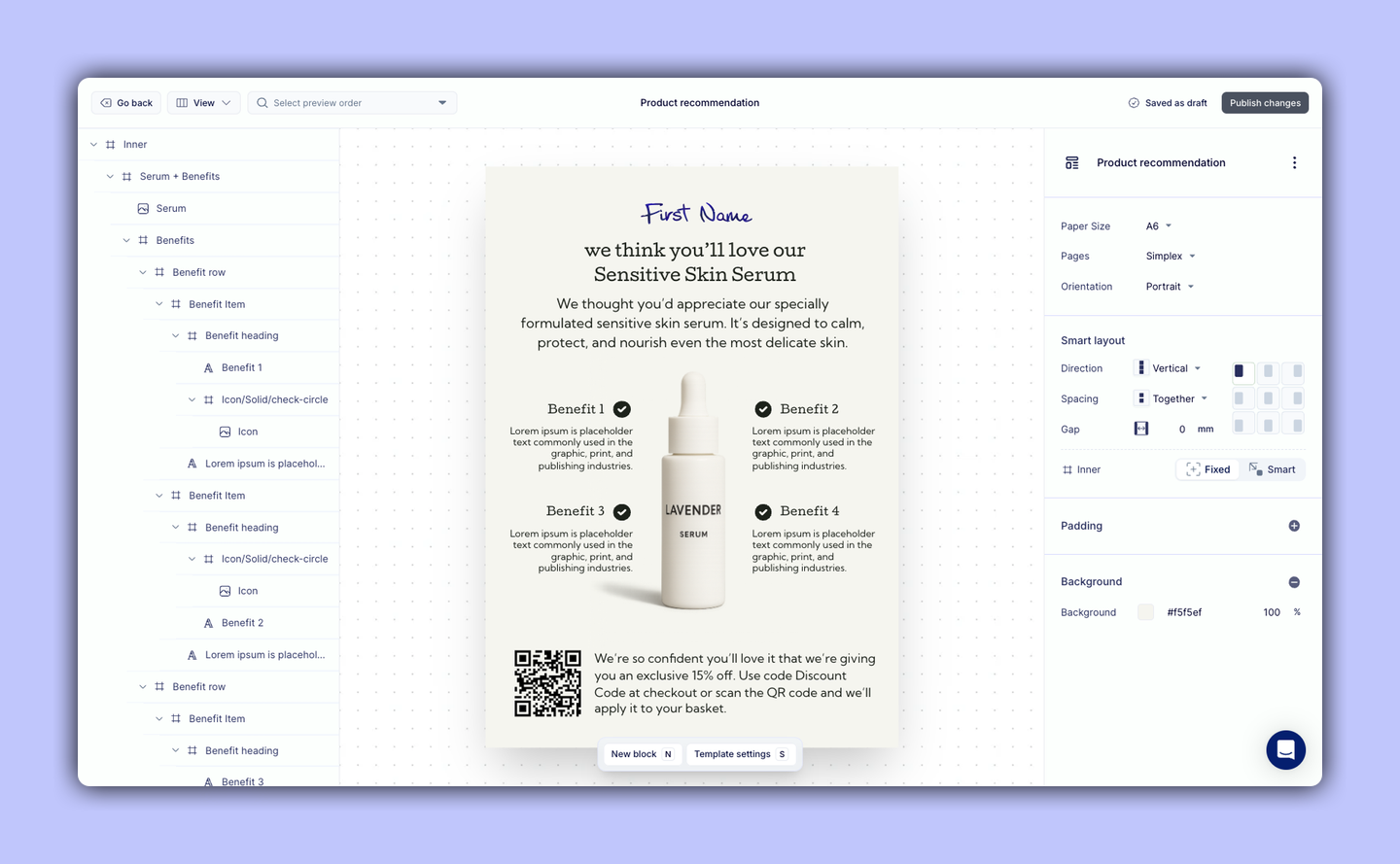
The importer tries to convert layer names, text, images, shapes, and groups into Yuzu. Some complex Figma layers may be simplified, flattened, or converted into image-like elements so the template remains usable in Yuzu.
Review the imported template before publishing or assigning it to a flow. Pay extra attention to:
- Variables and whether they resolve to the right Yuzu data
- Fonts and font weights
- QR code size, position, and destination
- Handwriting layer content and style
- Images, gradients, shadows, blend modes, dashed strokes, and mixed text styles
Yuzu does not guarantee the imported template will look exactly the same as the Figma design. Make final adjustments in Yuzu before using it for live orders.
Troubleshooting
- No variables appear: Check that your API key belongs to the right Yuzu team, then reload the importer.
- A variable does not import: Copy the token again from the importer and replace the text in Figma with the exact copied value.
- A font looks wrong after import: Add a font mapping in the importer Fonts page, then import again or update the font in Yuzu.
- The QR code imports as a normal shape: Rename the Figma layer to
QRand import again. - Handwriting imports as normal text: Rename the text layer using
handwriting/<family>with one of the supported family names. - The design does not match Figma exactly: Review the template in Yuzu and adjust unsupported or simplified elements manually.
For the operational support version of this guide, see the Yuzu Help Center article.